Shipping Matrix Generator
Creating a new rates table
Before you start:
- The shipping category must already exist in Maropost.
- Ideally you know the prices you want to enter, but you can add them later.
-
In
Shipping Update.xlsx, open the Rates sheet. -
Add a row at the bottom. In column A, enter the name of the shipping label used in Maropost, exactly as it appears there.
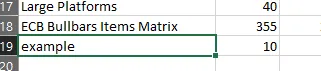
Fill in the zone columns with the rates.
-
Do the same on the other Matrix tables, the 2nd Parcel and Delivery Times sheets.
-
Create a new sheet with the same name. This is the Constructor sheet.
-
In Maropost, export the rates table for the shipping category.
The export is a CSV file. Its headers show which columns the import expects, so copy them into the Constructor sheet.
-
Copy the first row of formulas from an existing Constructor sheet of the same category type.
-
To link the Constructor sheet to the Matrix tables, change the fixed reference in the Internal Note formula to the new row in the Matrix tables.
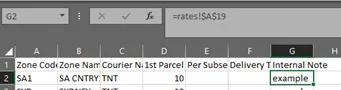
All formulas in the Constructor sheet rely on this to reference the correct row in the Matrix tables.
-
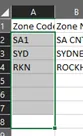
The Constructor sheet now has its headers and first row of formulas. Column A (Zone Code) pulls the zone codes from the Rates sheet, one per row.
Copy the Zone Code array formula down to the number of rows you expect.
-
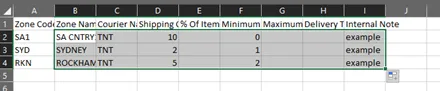
Fill the remaining columns down.
-
Hide the Constructor sheets, save the file, and run the generator as described in Price Updates. The new import file should appear in the
files_for_importfolder.