Editing the Home Page
The home page is often the first page a customer sees, so check it after every change. It is built from six sections. Some come from advertising campaigns, one from the Menu Manager, one from the Store Finder, and some parts are fixed in the theme and can’t be edited in the cPanel at all.
This page explains what each section shows and what it needs. For the step-by-step procedures, use the workflows:
- Adding, replacing or scheduling a home page advert: Site-wide adverts and content zones
- Changing the category grid: Edit the menus
- Changing store details and hours in the store carousel: Store hours
The sections, in page order
| # | Section | Comes from | Max |
|---|---|---|---|
| 1 | News slider | Advert group home_news | 4 |
| 2 | ”Within Reach” contact strip and store carousel | Fixed in the theme, plus the Store Finder records | All stores |
| 3 | Page description | Description 1 of the Home content page | n/a |
| 4 | Category grid | Menu Manager menu category_grid | No theme limit |
| 5 | Service cards | Advert group featureCards | 3 |
| 6 | ”What do you get at Altapac?” slider | Advert group home_banner | 10 |
All three advert groups need Location set to the Home page. An advert without it saves normally but never shows.
1. News slider (home_news)
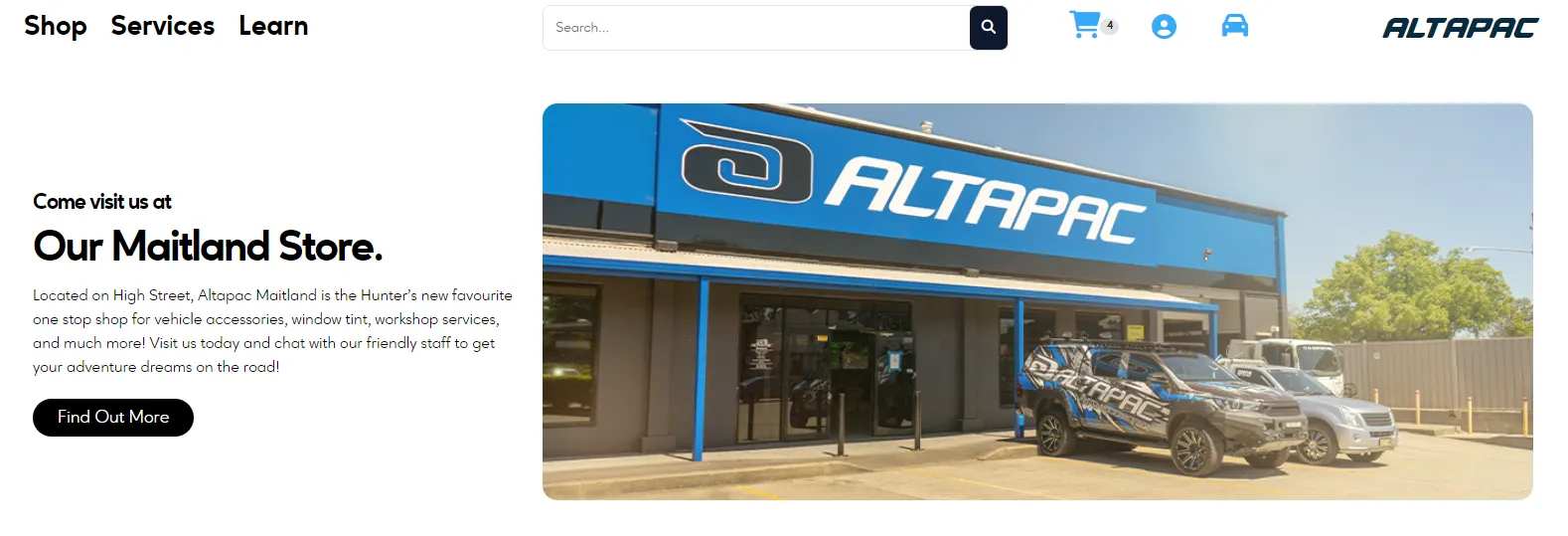
A full-width slider at the top of the page. It shows up to 4 adverts from the home_news group, one at a time, and moves to the next every 5 seconds. Dots appear under it only when there are 2 or more slides. With no live home_news adverts, the section isn’t shown.
What each field does
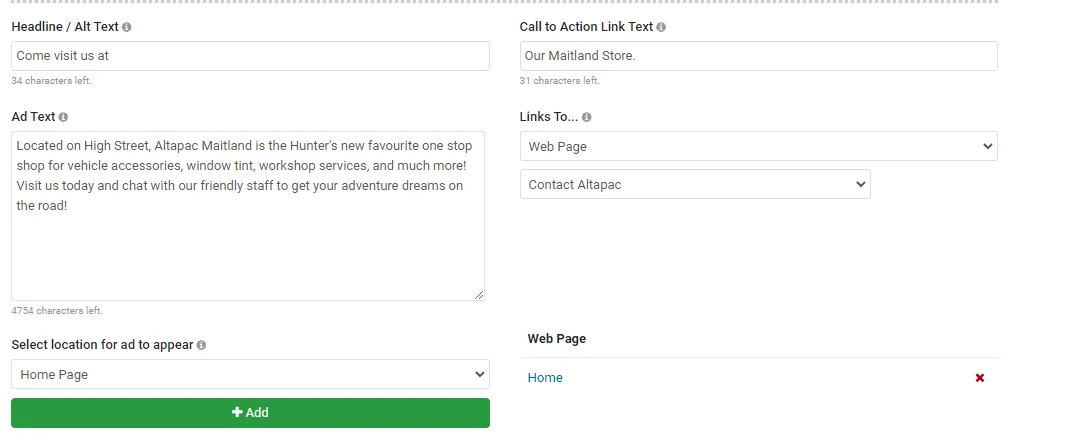
The field labels below are as they appear in the cPanel screenshot above.
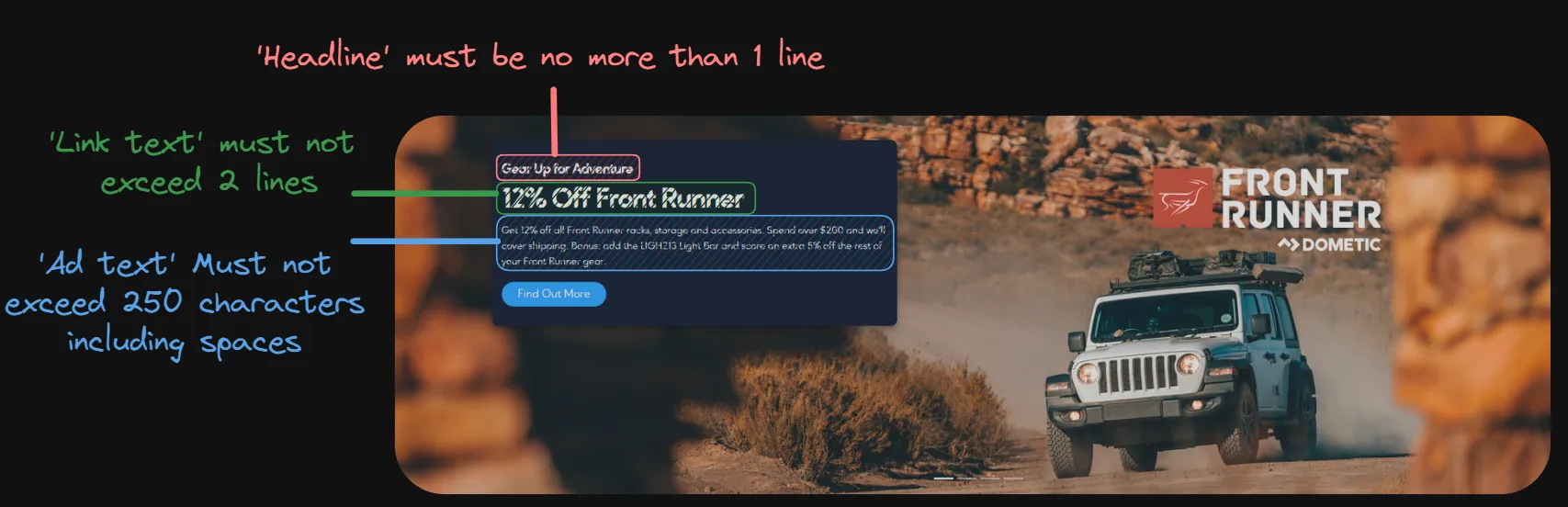
- Headline / Alt Text: the first, smaller line of the heading. In the example it’s “Come visit us at”. Keep it short enough to stay on one line on desktop.

- Call to Action Link Text: the second, larger line of the heading. In the example it’s “Our Maitland Store.” On news slides this field is a heading, not a button label. Keep it to two lines at most on desktop.
- Ad Text: the paragraph under the heading. Use plain text only, with no HTML. The theme doesn’t cut it off, so keep it under about 250 characters, including spaces.
- Links To…: adds a button under the text. The button always reads “Find Out More” and can’t be changed. With no link, there’s no button.
- Image: the slide background. The slide is 600px tall and the image is stretched to fill the width and cropped from the centre. Use 1920 × 600 for every slide so they crop the same way.
- Select location for ad to appear: Home Page.
- Dates (optional): use the advert’s date range for time-sensitive news.
2. “Within Reach” contact strip and store carousel
This section sits directly under the news slider. Most of it is fixed in the theme.
Contact strip (left). These parts can’t be edited in the cPanel:
- The heading “Putting Great Adventure Within Reach.” and the line “Altapac is your One-Stop Adventure Shop”.
- The lifestyle photo under the buttons. It’s a fixed image file,
/assets/images/homepage/Dometic-Camp_360x1257.jpg(1257 × 360). To change the photo, a developer has to change the theme, or the file has to be replaced with one of the same name and size. - Email Us opens the site’s contact pop-up. See Adding a Contact Modal Button.
- Call Now shows and dials the company phone number from the
COMPANY_PHONEconfig value (live: (02) 4941 4499). The same value is used on the contact pop-up, footer, service pages and product pages, so changing it changes every Call link on the site.
Store carousel (right). This is built from the Store Finder records, one slide per store, so it updates when a store record changes. Each slide shows:
- the store name, linking to its
/locations/page (from Store Finder custom field 5), or to the store’s own Store Finder page if that field is empty - the street address, suburb, state and postcode
- ”Open Mon - Fri” with the weekday hours (custom fields 1 and 2, weekdays open and weekdays close), shown only if field 1 is filled
- ”Sat” with the Saturday hours (custom fields 3 and 4, Saturday open and Saturday close), shown only if field 3 is filled
- the store’s Store Finder image as the background
The hours are printed exactly as typed, for example 08:00 - 17:00. There is no Sunday line. Stores are listed in name order, with a button for each store’s suburb under the slides. The carousel opens on store 1 (Kotara) and moves on every 30 seconds.
For how to change store details and hours, and what goes wrong, see Store hours.
3. Page description
The Home content page is the page named “Home” (content 39, body template home). If it has a Description 1, it’s shown here, between the store carousel and the category grid. If it’s empty, nothing is shown. It’s mainly there for SEO text.
On this template, Description 1 is wrapped in #_Custom-page-content, so custom CSS for it must start with that ID. See Custom CSS and HTML in page content.
As of the 20 October 2026 content pull, the Home page has no Description 1, so this section isn’t showing.
Saving this page in the cPanel clears Maropost’s cached copy of it, so the change shows on the next load. Its last-updated date (DateUpdated) doesn’t change on save, so check the live home page to see whether a change went through.
4. Category grid (category_grid)
The grid of category icons comes from the Menu Manager menu with the reference category_grid (named “Category Grid”). Each level 1 item in that menu becomes one tile, in the order set in the Menu Manager, with the item’s name as the caption and its link as the target. Deeper levels aren’t shown. On 21 October 2026 the grid had 18 tiles.
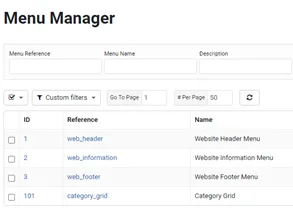
The grid isn’t cached, so menu changes show straight away. For how to add, remove or reorder items, see Edit the menus.
Icons
The theme doesn’t take the icon from the category. It looks for two PNG files named by the item’s position in the menu, written as three digits:
- Small:
s_icon###.png, 64 × 50, used on phones. - Large:
l_icon###.png, 240 × 195, used on larger screens.
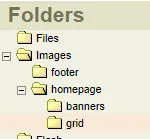
So the first item uses s_icon001.png and l_icon001.png, and the sixth uses s_icon006.png and l_icon006.png. The files live at /assets/images/homepage/grid/ on the site, which is the Images > homepage > grid folder in the cPanel file manager.
Icons are shown in a 16:13 box on a light grey background. An image with different proportions is shrunk to fit, not cropped.
5. Service cards (featureCards)
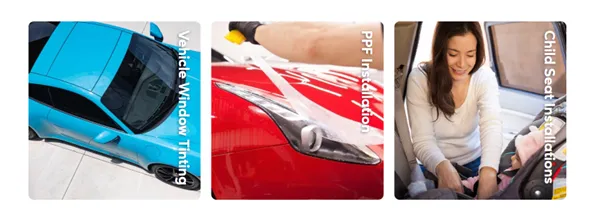
A row of square cards below the category grid. It shows up to 3 adverts from the featureCards group (live: 3). With no live adverts, the section isn’t shown.
- Image: the card background, square, cropped from the centre. Use 500 × 500.
- Headline / Alt Text: the card title, printed large and running vertically up the card. Keep it to 22 characters or fewer. The theme doesn’t enforce this, but longer titles don’t fit the card.
- Links To…: the whole card links here.
- Ad Text and Call to Action Link Text aren’t used.
With fewer than 3 cards, each card stays one third of the row wide and the rest of the row is left blank.
6. “What do you get at Altapac?” slider (home_banner)
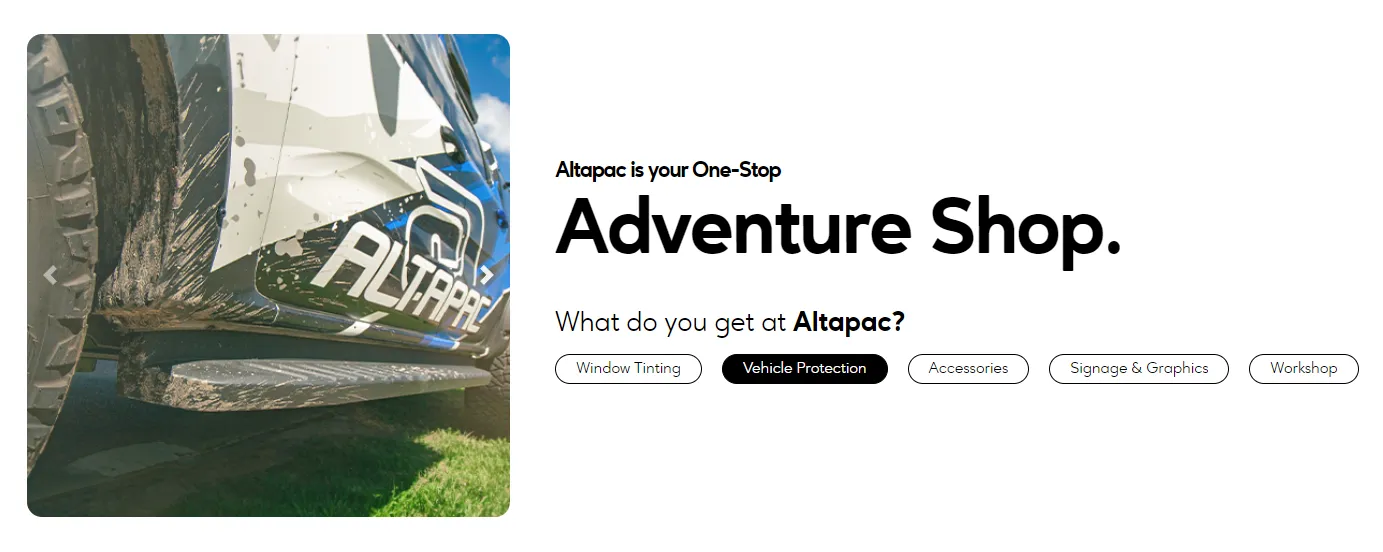
The last section. A square image slider on the left, and on the right the page’s main heading, “Altapac is your One-Stop Adventure Shop.”, the line “What do you get at Altapac?”, and a row of text links that select slides. It shows up to 10 adverts from the home_banner group (live: 5). With no live adverts, the section isn’t shown.
- Image: square, 450 × 450. It’s shown whole, so a non-square image gets blank bars rather than being cropped.
- Headline / Alt Text: used only as the image’s alt text. It isn’t shown on the page.
- Call to Action Link Text: the label in the row of text links.
- Links To…: where the image goes when clicked.
The main heading text itself is fixed in the theme and can’t be edited in the cPanel.
For developers
Theme files this page is based on
From Altapac-ReDev, branch development, read 2026-10-21:
src/templates/cms/home.template.html: the whole page.- News:
[%advert type:'text' template:'carousel' limit:'4' ad_group:'home_news'%],data-interval="5000", indicators only whentotal_showing > 1, “Find Out More” inside[%if [@url@] ne ''%]. - Within Reach: hard-coded heading,
tel:[@config:COMPANY_PHONE@],#contactModalbutton, image/assets/images/homepage/Dometic-Camp_360x1257.jpg. - Store carousel:
[%list type:'store_location' limit:'50'%], background from[%thumbnails type:'storeloc'%], link/locations/[@misc5@]with[@url@]fallback, hours on misc1–misc4,activeonstore_id eq '1',data-interval="30000". A small script renumbers the indicator buttons by DOM position because the list is in name order. - Description:
[%if [@content_description1@]%]inside<section id="_Custom-page-content">. - Category grid:
[%menu id:'category_grid'%],*level_1only, not cached. Icons/assets/images/homepage/grid/s_icon[@hierarchy@].pngandl_icon[@hierarchy@].png; live,[@hierarchy@]renders as the zero-padded position (001, 002, …). - Service cards:
limit:'3' ad_group:'featureCards',col-4per card. - Banner:
limit:'10' ad_group:'home_banner'. Text links built only inside[%if [@linktext@] ne '' AND [@url@] ne ''%]. The arrows, the hard-coded<h1>, the tagline and the control links are all inside[%if [@total_showing@] > 1%]in the footer param.
- News:
src/css/home.css: news slide 600px tall, backgroundcover/center;.catThumb imgaspect-ratio: 16 / 13withobject-fit: contain;._service_cardsquare,background-size: cover,vertical-rlheading;#homepageCarousel ._banner_adsquare withobject-fit: contain.- Grid icons and the Within Reach image aren’t in the theme repo. They are site assets.
- Home page content: Altapac-Content
pages/_id-39/meta.json(content 39,BodyTemplate: "home", no Description 1 file in the 2026-10-20 pull).DateUpdatedstayed 2024-07-05 through an API push and a cPanel save; the API doesn’t clear the page cache and a cPanel save does (Altapac-ContentCLAUDE.md). - Store Finder custom field names (misc1 to misc4): Altapac-ReDev
docs/probes/RESULTS.md, Store Finder probe 2026-09-15.
News slide headings are <h2> on development (commit 8646a8c, AUD-80) and <h1> on main, which is what the live site showed on 21 October 2026.